0

Step 1
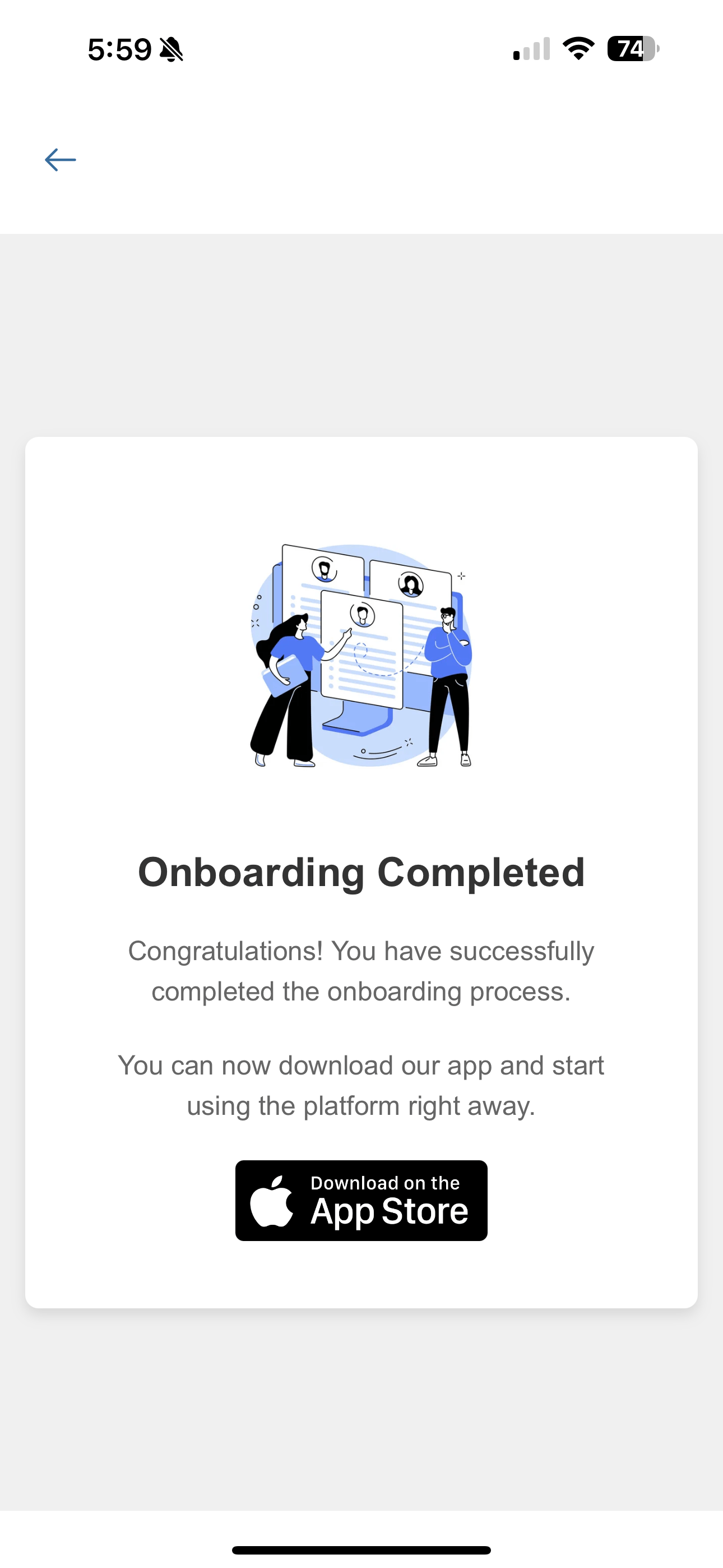
Download the Mechanic Buddy App
Go to the App Store (iPhone) or Google Play (Android) and search for "Mechanic Buddy". Download and install the app to get started.
Step 2
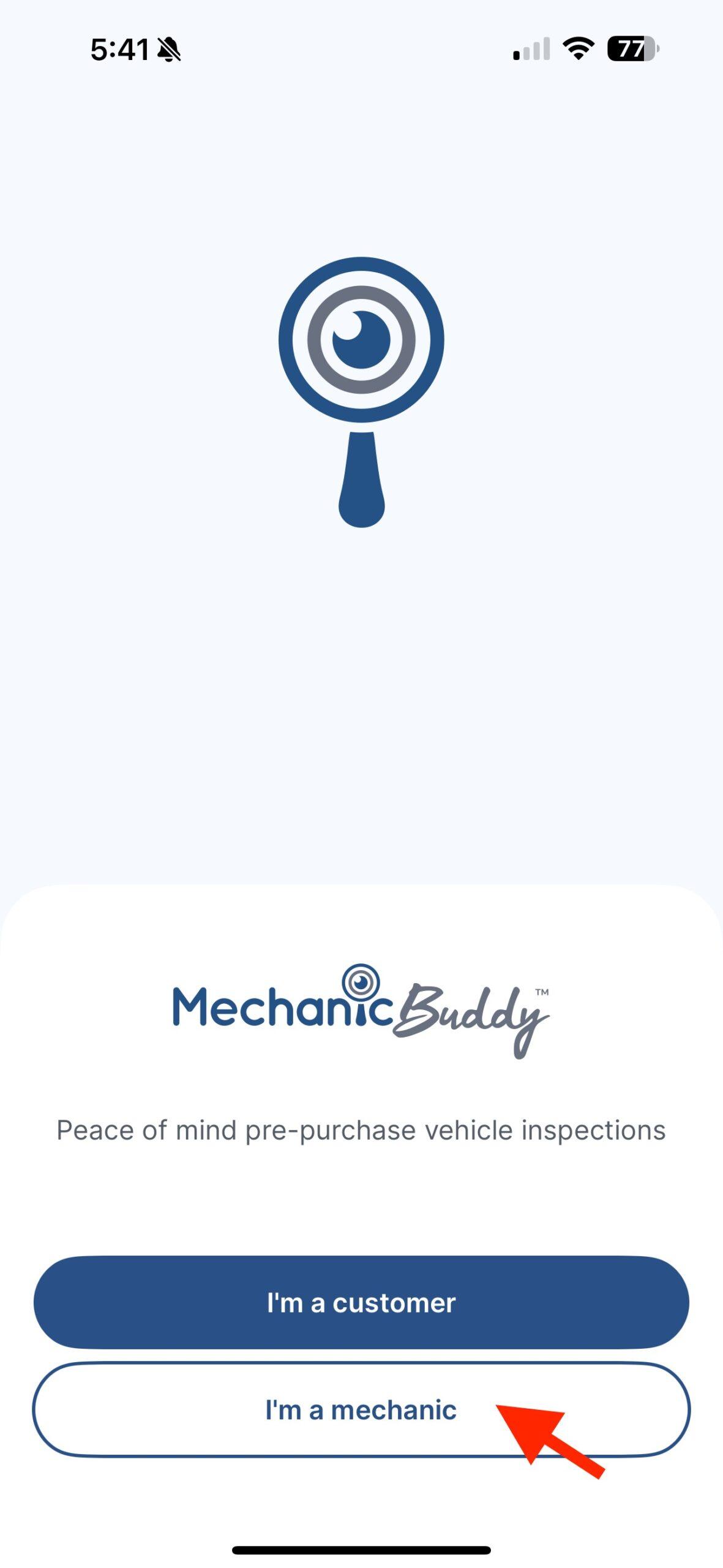
Select “I’m a mechanic”
Open the app and tap the “I’m a mechanic” button at the bottom of the welcome screen.
Step 3
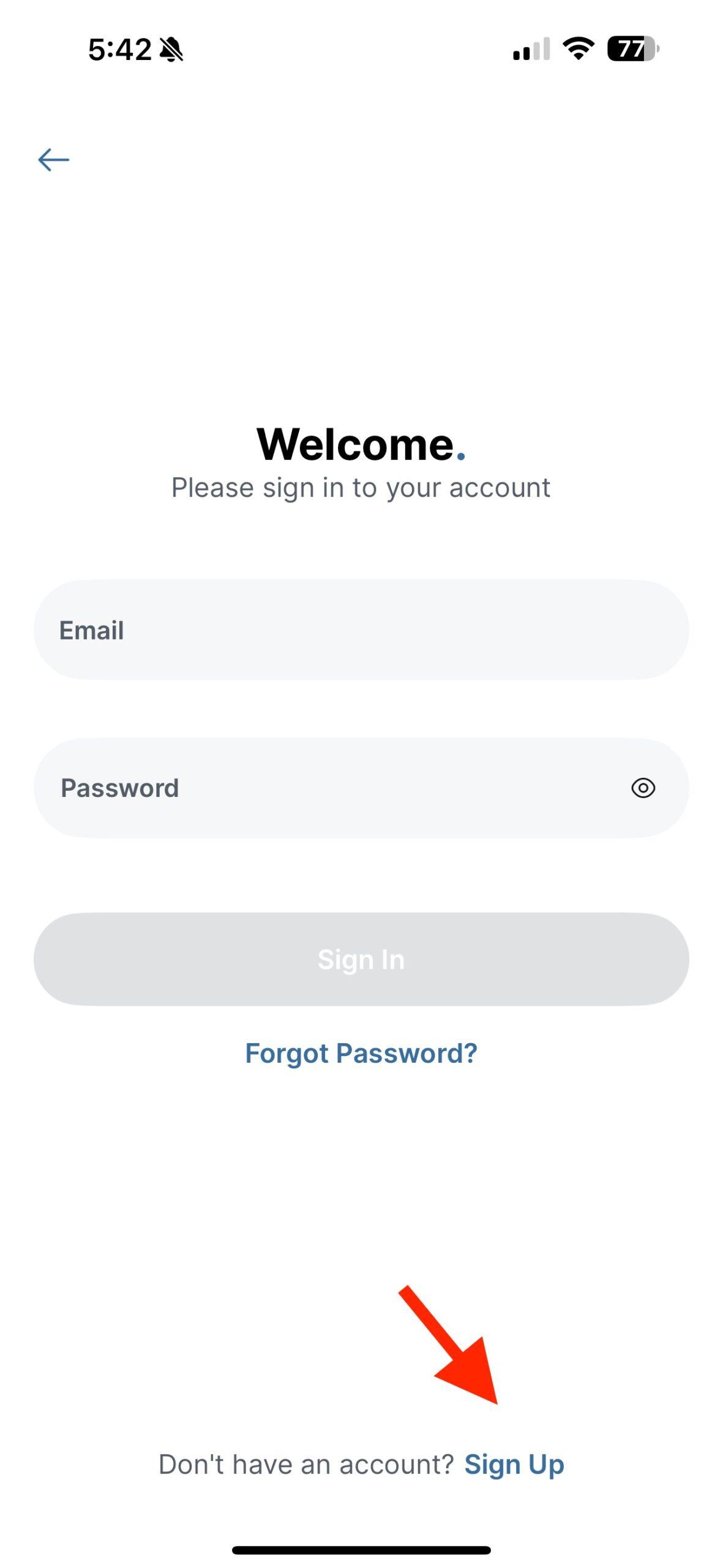
Tap “Sign Up”
On the login screen, tap “Sign Up” at the bottom to begin creating your new account.
Step 4
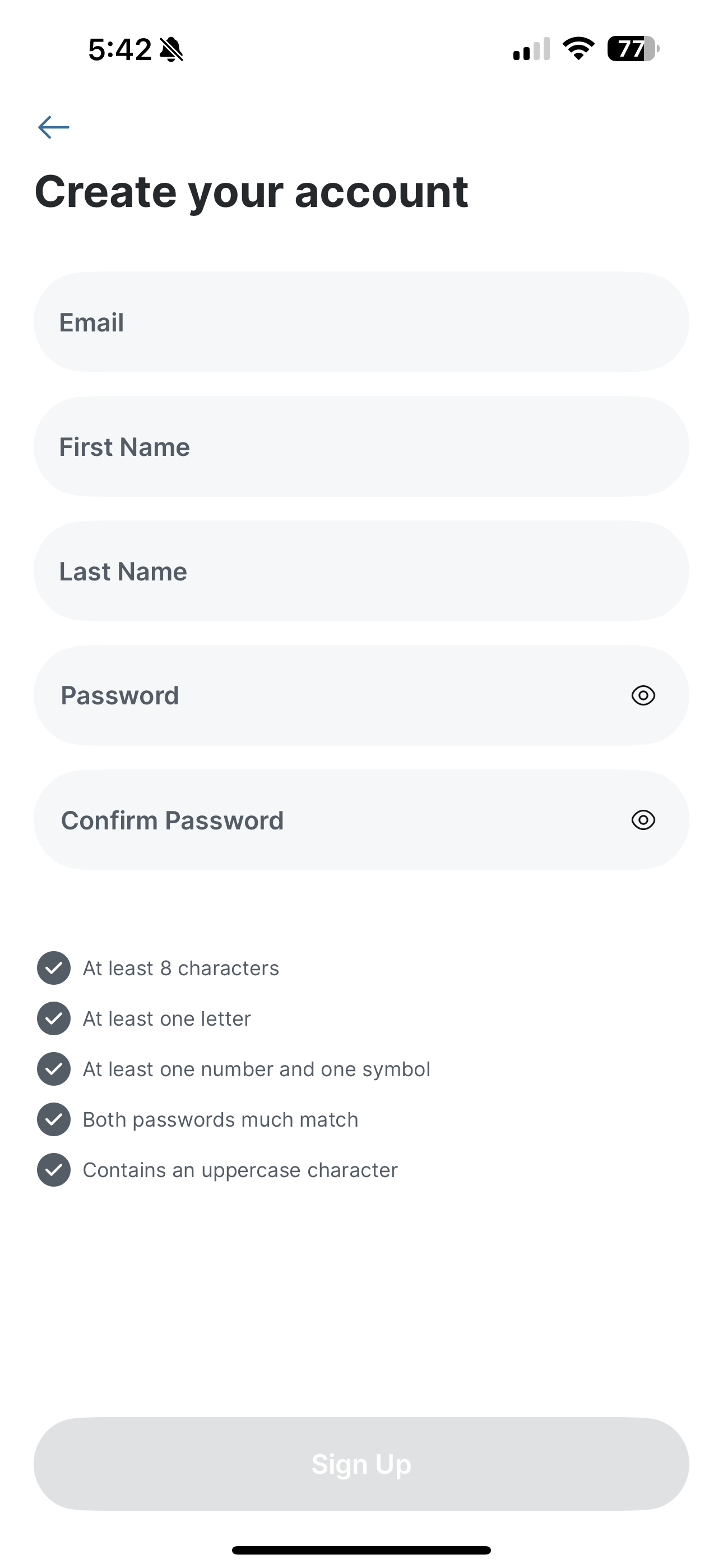
Create your account
Fill in your email, name, and password. Follow the password requirements, then tap Sign Up.
Step 5
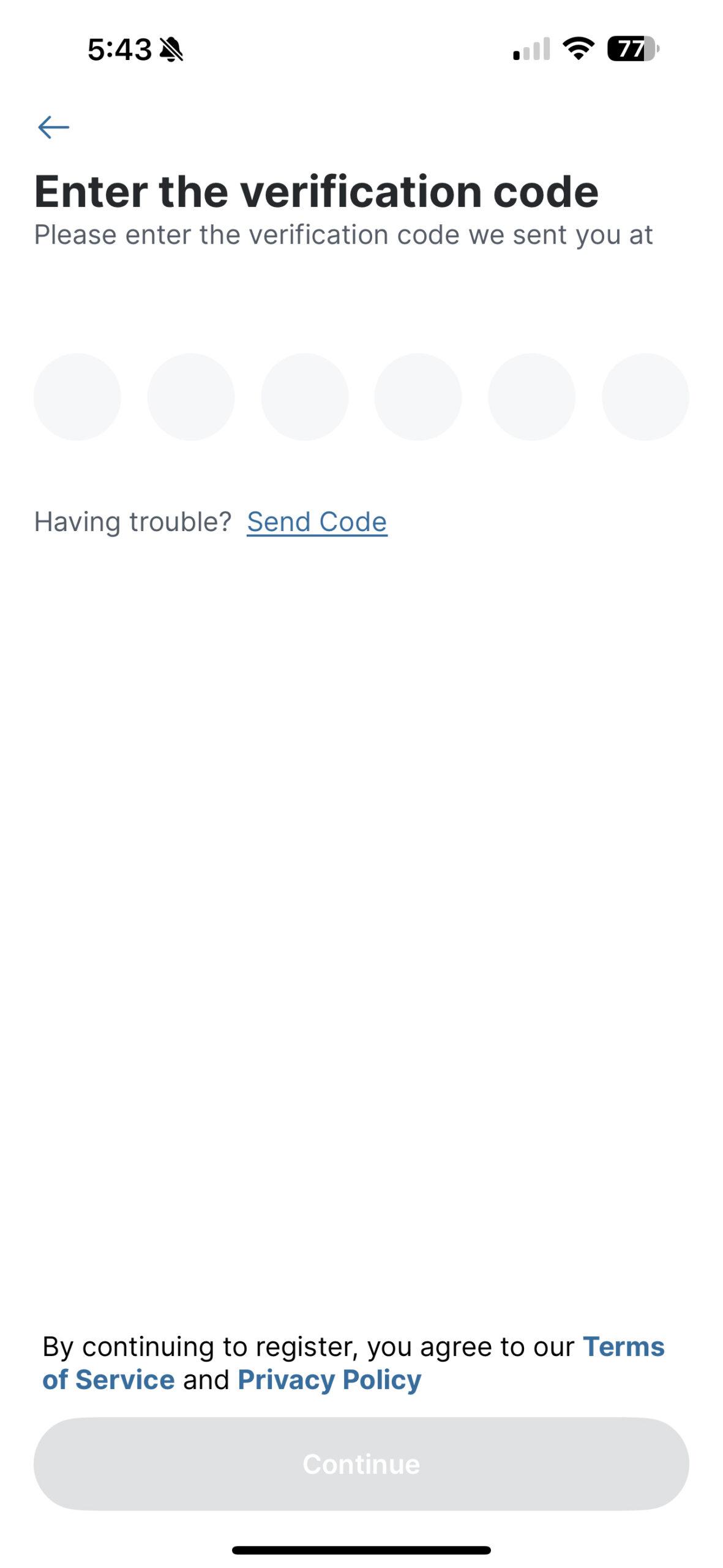
Verify your email
Check your inbox for a verification code and enter it in the app.
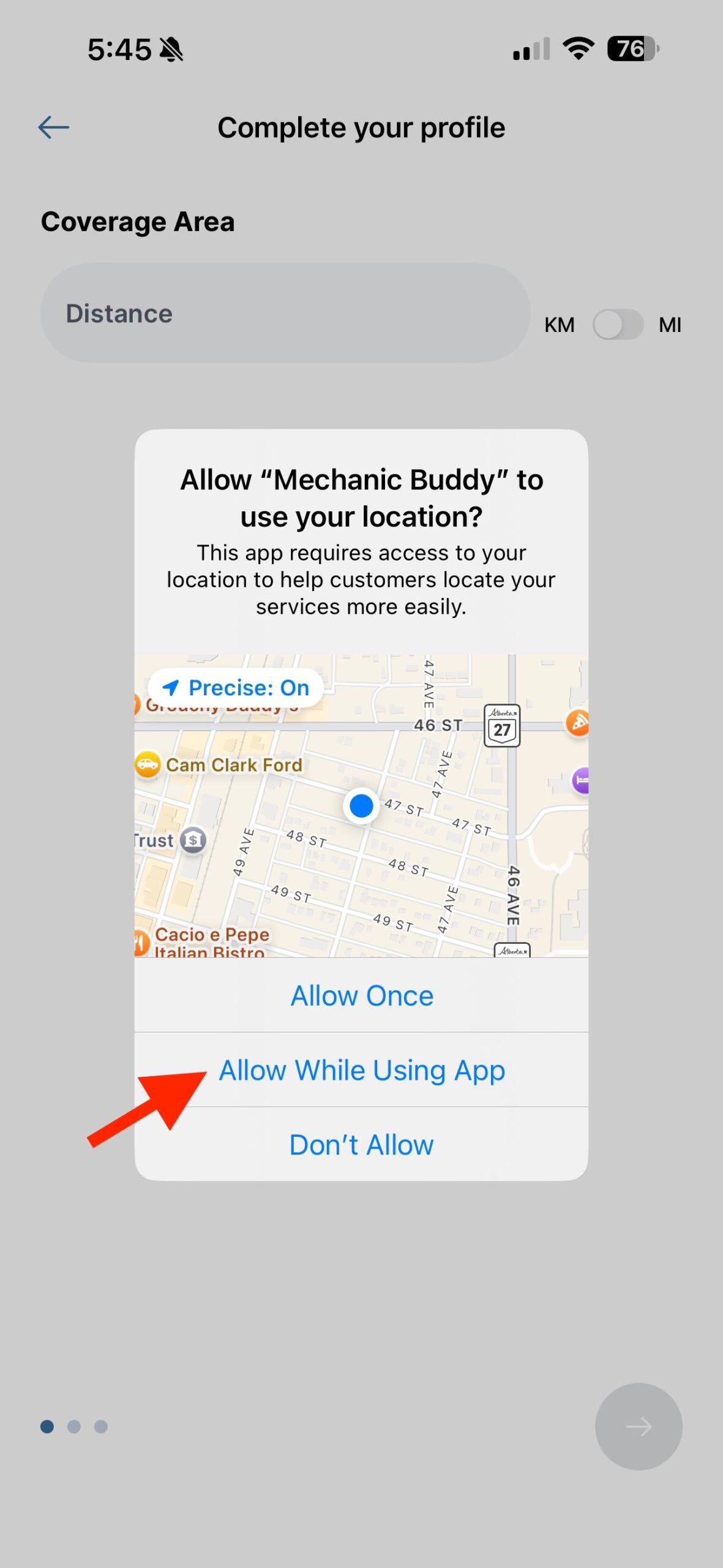
Step 6
Allow location access
Tap “Allow While Using App” so customers can find you for nearby inspections.
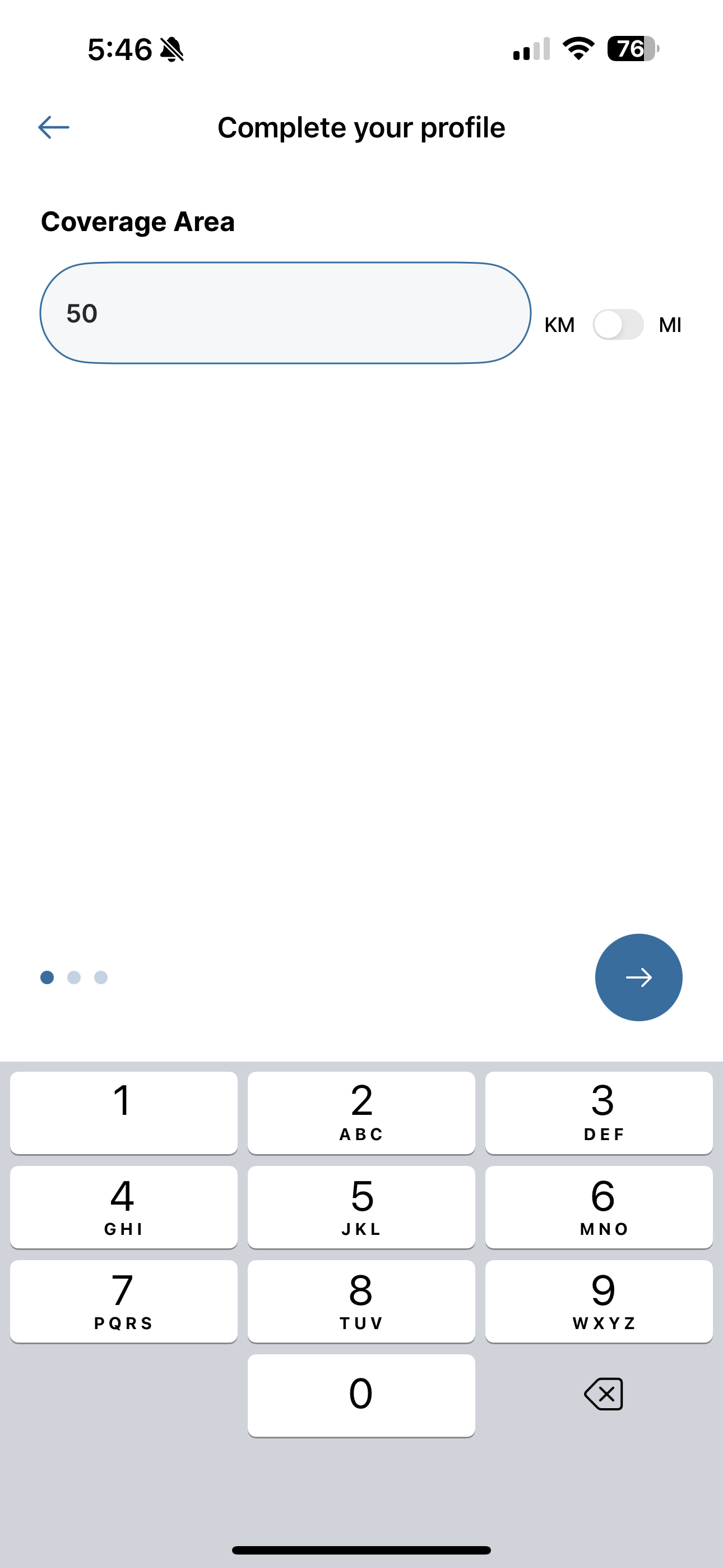
Step 7
Set your coverage area
Enter the distance you're willing to travel (in km or miles) to perform inspections.
Step 8
Add service info and qualifications
Select your average response time, and write a short paragraph about your qualifications.

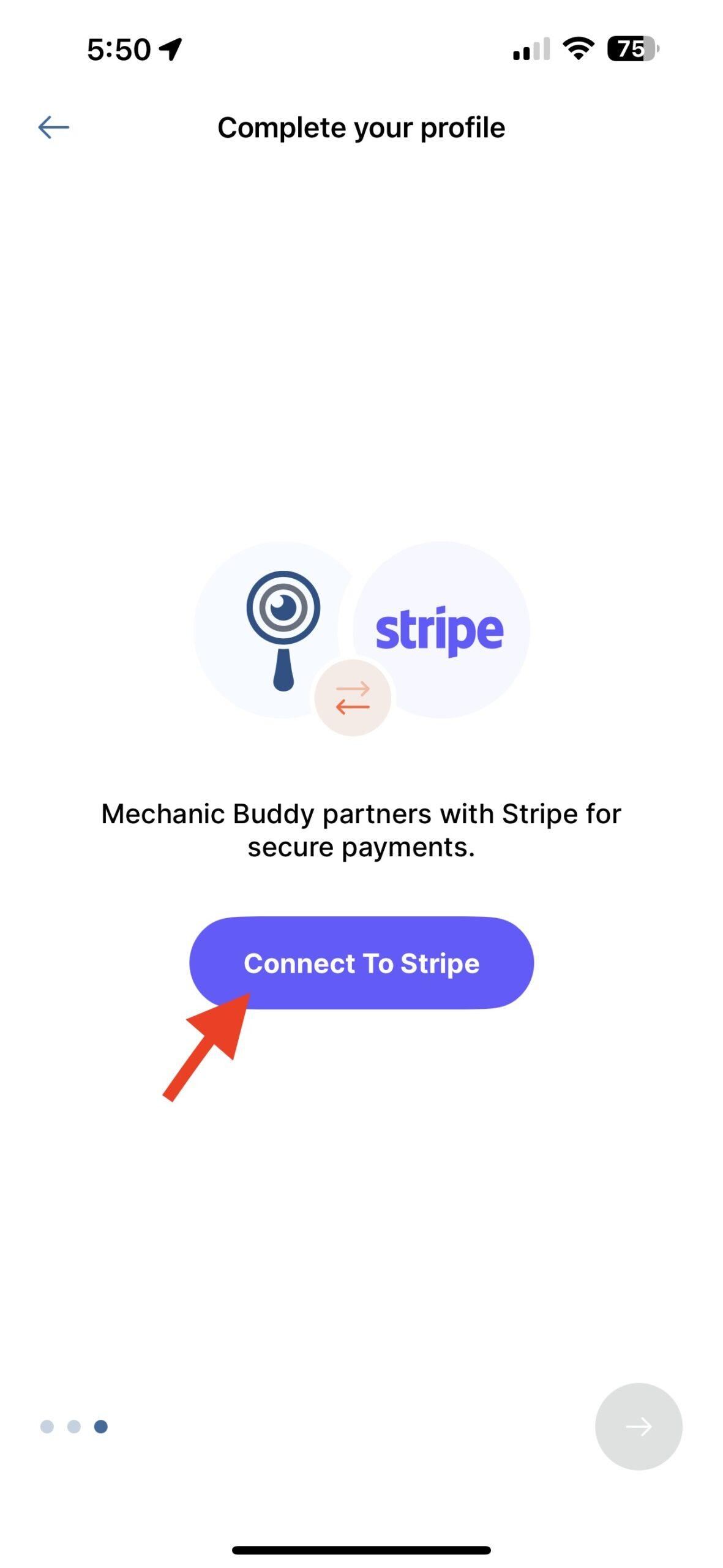
Step 9
Connect to Stripe
Tap “Connect to Stripe” to set up your payment account.
Step 10
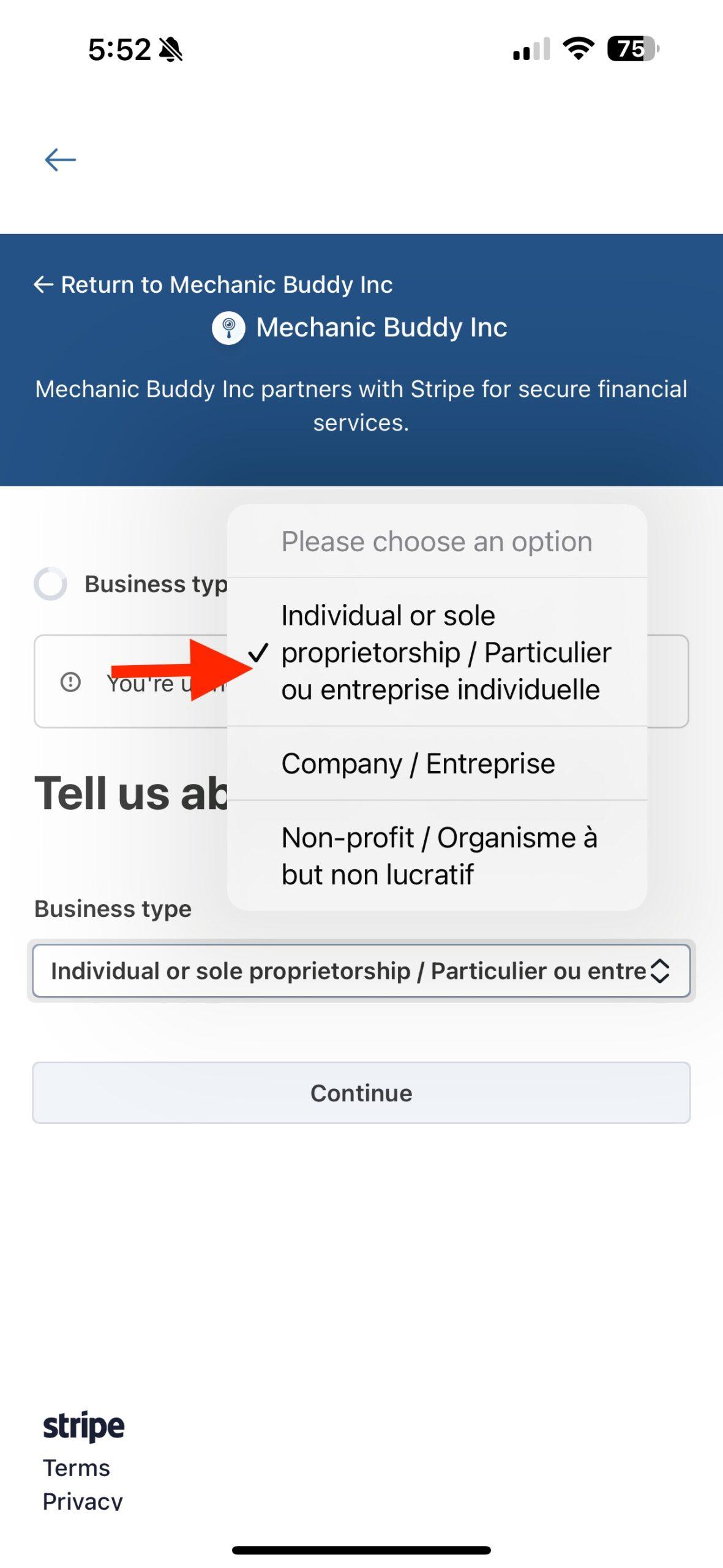
Choose your business type
Most users should select Individual or sole proprietorship.
Step 11
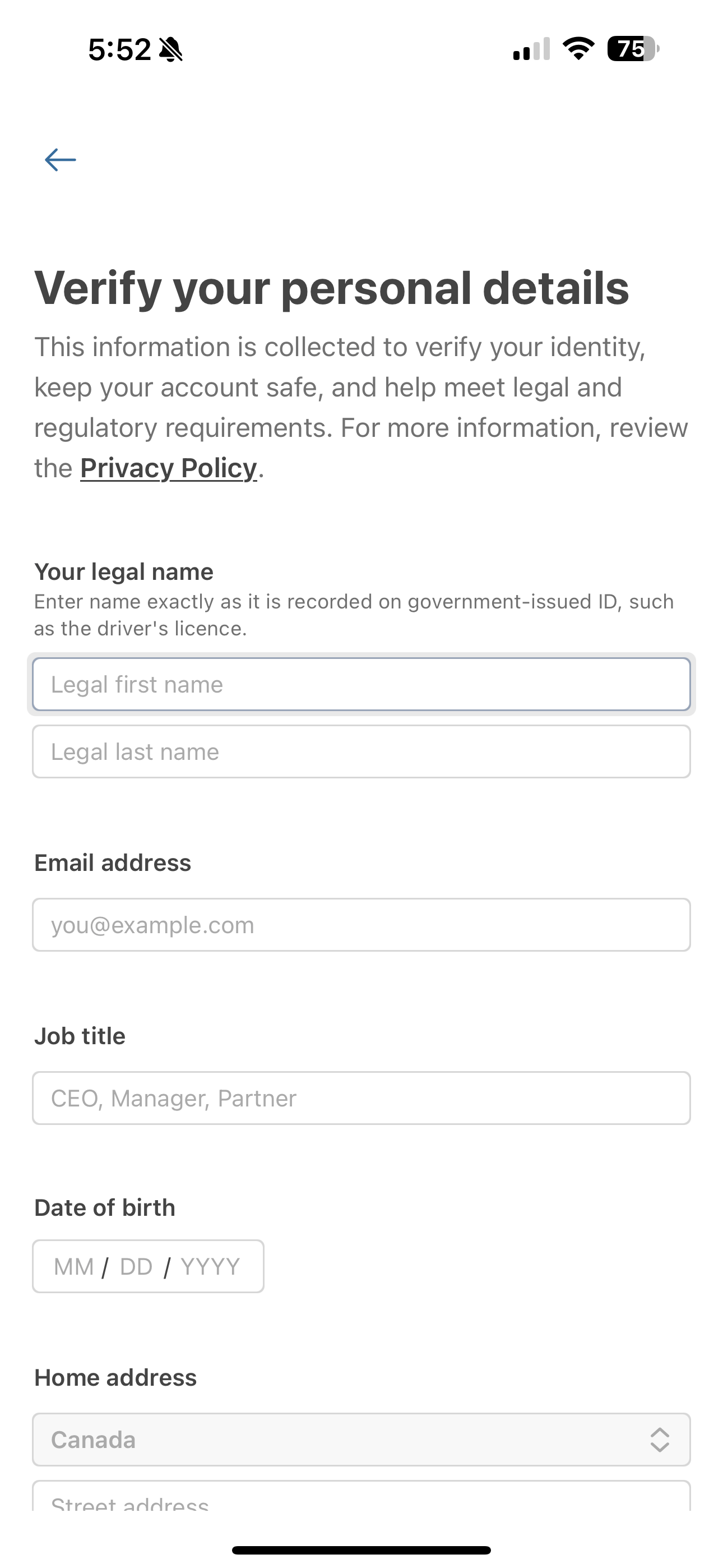
Enter your personal details
Stripe requires legal name, email, job title, date of birth, and home address for identity verification.
Step 12
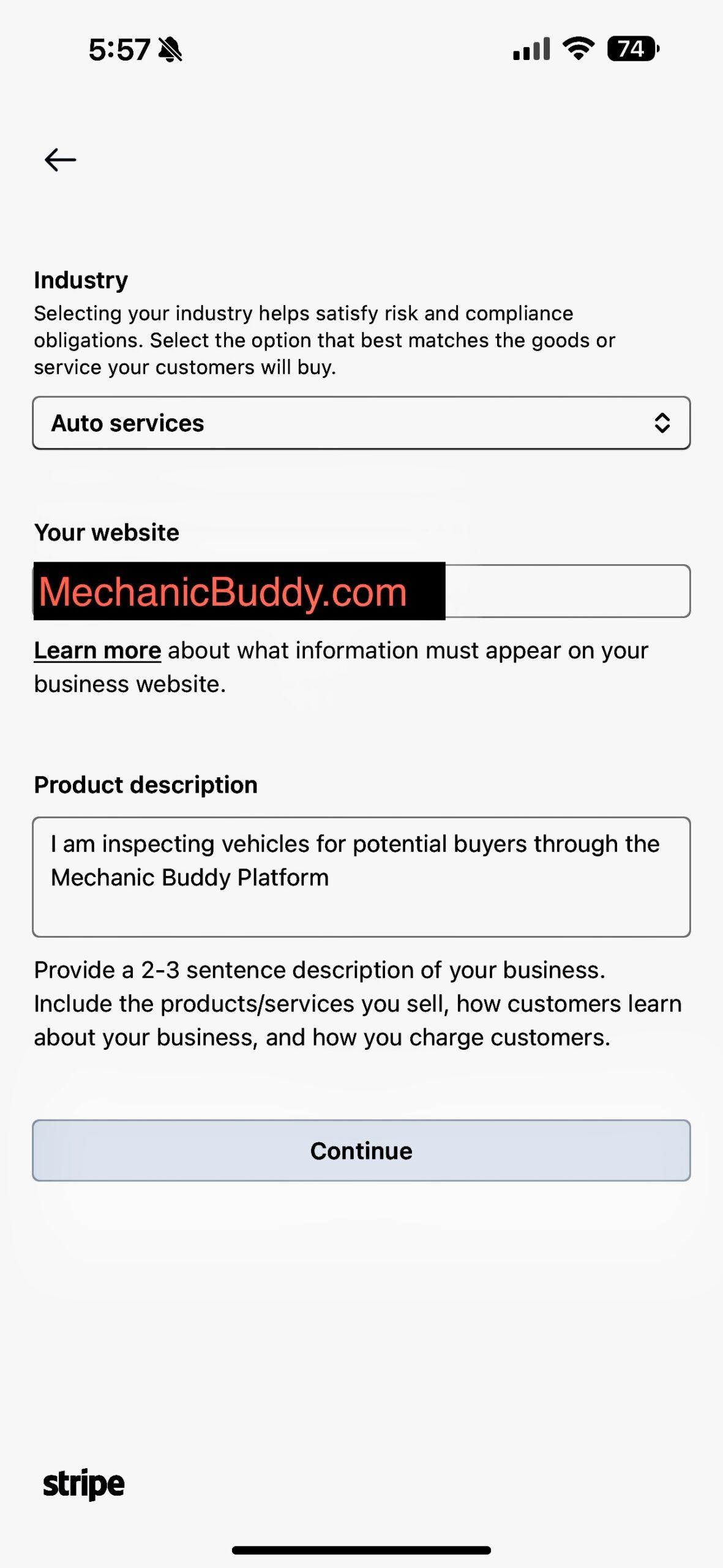
Select “Auto Services” as your industry
Make sure to choose the correct category for your services.

Step 13
Enter your website and service description
Use MechanicBuddy.com for the website and describe that you provide pre-purchase inspections through the app.
Step 14
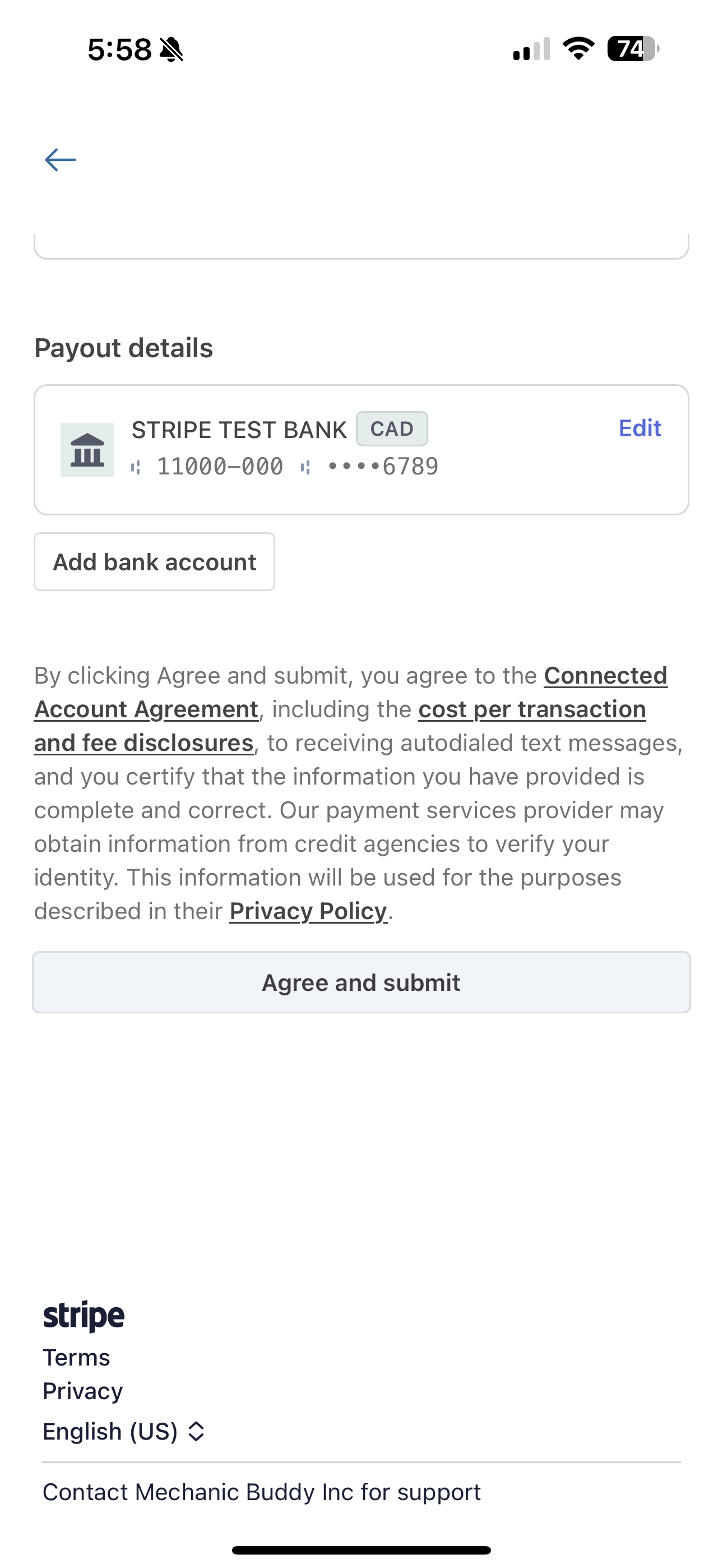
Add your bank account
Enter your banking information to receive payments directly to your account.

Step 15
Agree and submit
Review your banking details and tap “Agree and submit” to finalize your Stripe account setup.
Final Step
Download the Stripe app & complete your profile
You’re ready to accept jobs on the Mechanic Buddy app!
- Download the Stripe mobile app to track your payouts and manage your earnings.
- Add a profile picture in the app settings to build trust and increase your chances of getting hired.